![NEKO_FINAL_logos,_seriously-535x275.dm.crop_0_0_535_275_e8h2 (1).png]](https://faq.northeastkingdomonline.com/hs-fs/hubfs/NEKO_FINAL_logos%2c_seriously-535x275.dm.crop_0_0_535_275_e8h2%20(1).png?width=200&height=103&name=NEKO_FINAL_logos%2c_seriously-535x275.dm.crop_0_0_535_275_e8h2%20(1).png)
-
Log in to Meta Business Suite:
- Open Meta Business Suite and log in to the account associated with your business.
-
Navigate to the "Requests" Section:
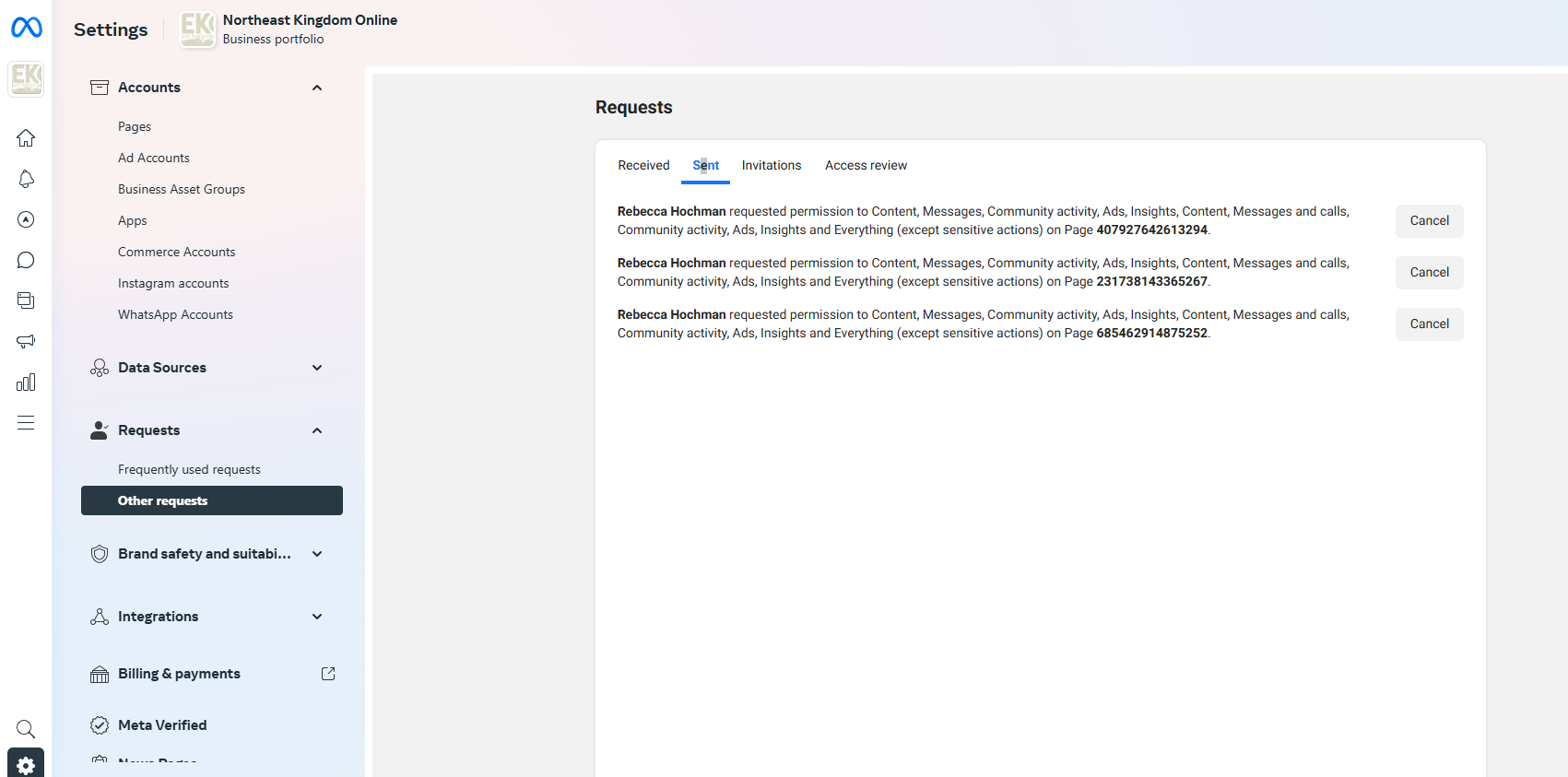
- On the left-hand menu, scroll down to the "Requests" section under Settings.
- Click on "Other requests" to view the list of sent, received, or pending access requests.
-
View Sent Requests:
- At the top of the "Requests" section, click the "Sent" tab to see the access requests you’ve made to other accounts or pages.
-
Locate the Request to Cancel:
- Identify the specific request you want to cancel. Each request will include details like the recipient’s name, the permissions requested, and the page ID.
-
Cancel the Request:
- Next to each access request, you’ll see a "Cancel" button. Click this button to cancel the request.
-
Confirm the Cancellation:
- Depending on the interface, you may be prompted to confirm the cancellation. If so, confirm your decision, and the request will be canceled.
By following these steps, you can easily manage and cancel any unnecessary or outdated access requests in your Meta Business Suite.